- Help Centre
- INTERNAL - Logistics
- Star Track
-
SAMSUNG - Technical Support
-
SAMSUNG - Online Video
-
SAMSUNG - INTERNAL - Technical Support
- Support Team Call Flow
- Door Lock SHP-A30
- Door Lock - SHP-DP609
- Door Lock - SHP-DR708
- Door Lock - SHP-DP728
- Door Lock - SHP-DP727
- Door Lock - SHS-P718
- Door Lock - SHS-P717
- Door Lock - SHP-DH538
- Door Lock - SHP-DH537
- Door Lock - SHS-3321
- Door Lock - SHP-DS510
- Door Lock - SHP-DS705 (SHS-D607)
- Door Lock - SHS-H505
- Door Lock - SHS-H705
- Door Lock SHS-7020
- Door Lock - KL-100B & KL-100S (Keyless key)
- General Miscellaneous
- Accessory/ Lock Parts
- CCTV
- HubSpot
- Work Order Process
-
INTERNAL - Logistics
-
INTERNAL - Documents
-
INTERNAL - Product and Merchandising Manager - SOP
How to create a StarTrack pick-up to collect faulty parts from the customer
Faulty parts need to collect for testing.
1. Login to StarTrack, Go to Reverse Logistics and select Returns and Transfer.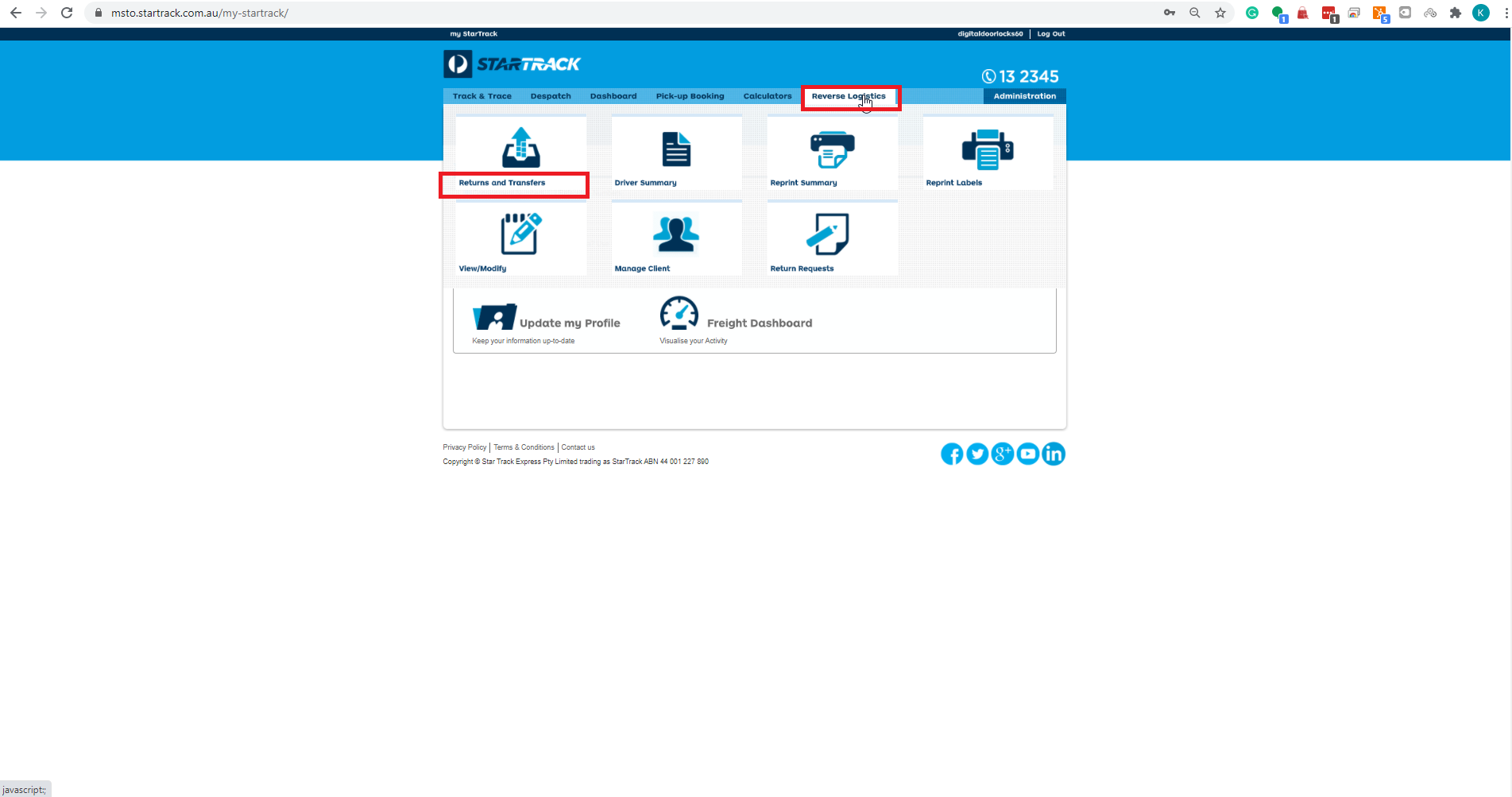
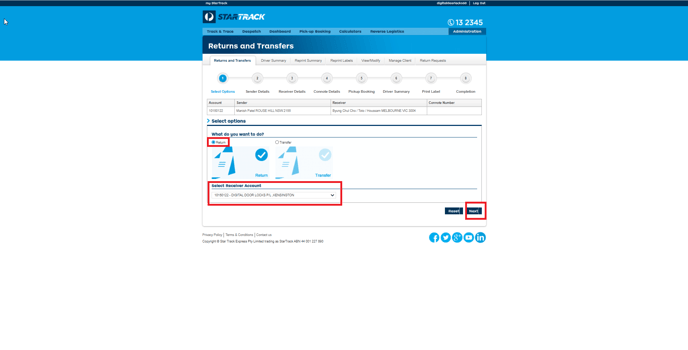
2. Select Returns for (What do you want to do?), Select Receiver Account - DIGITAL DOOR LOCKS P/L,KENSINGTON then NEXT.
3. Enter Sender's details. (Customer name, address, contact, phone and email address)
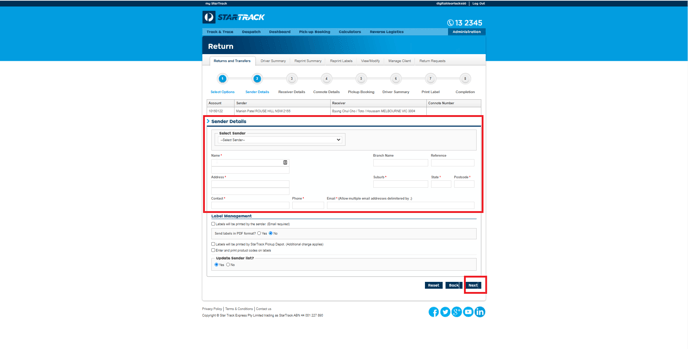
4. Select St. Kilda, Melbourne address then Next. ( Enter other address if necessary.) 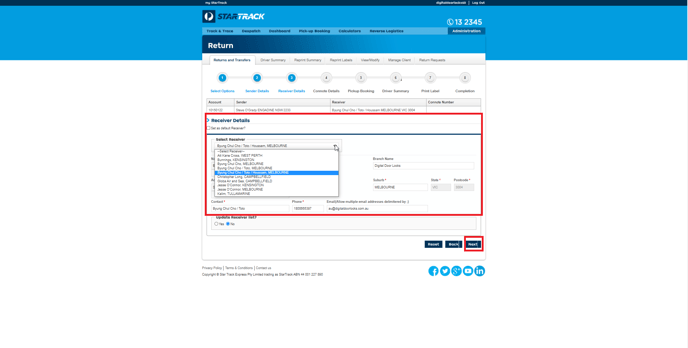
5. Enter Connote details.
Freight Details ( Reason : Faulty - repair )
Despatch date: date when connote created
Sender's Reference: Hubspot ticket number
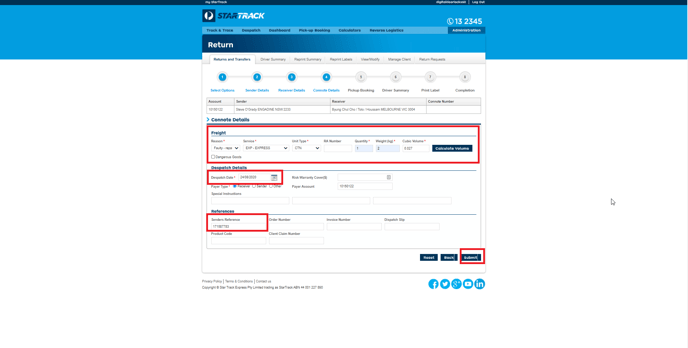
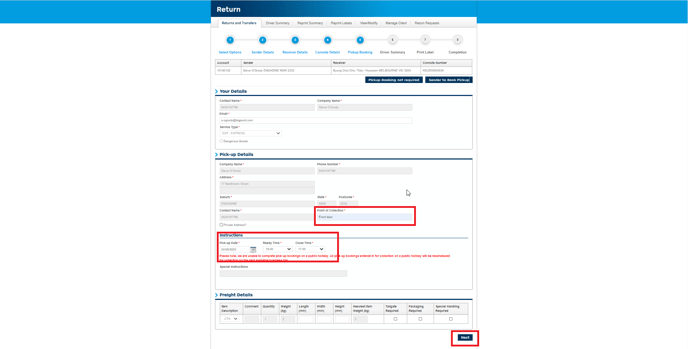
6. Enter Pick-up details. (Pick-up date is customer requested date for the pick-up)
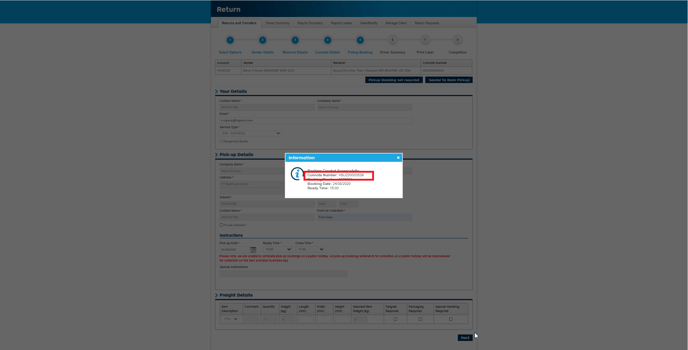
7. Copy Connote number for reference.
8. Download Driver Summary.
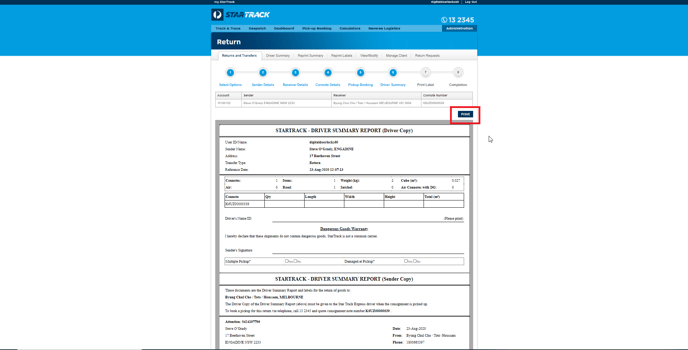
9. Save as PDF and save. (Save to your desktop/documents)
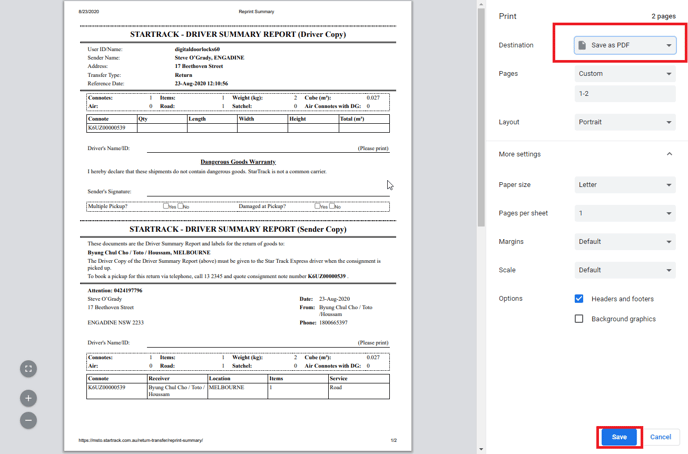
10. Download Print label.
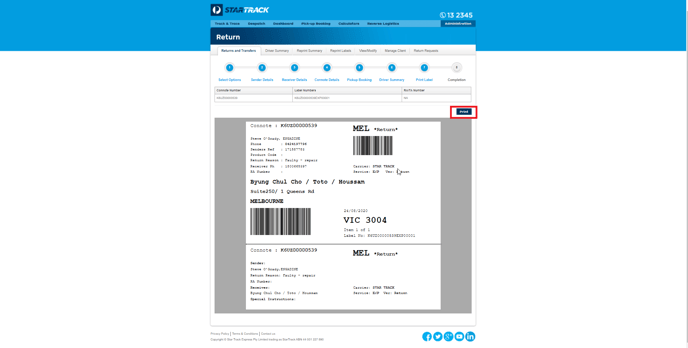
11. Save as PDF and save. (Save to your desktop/documents)
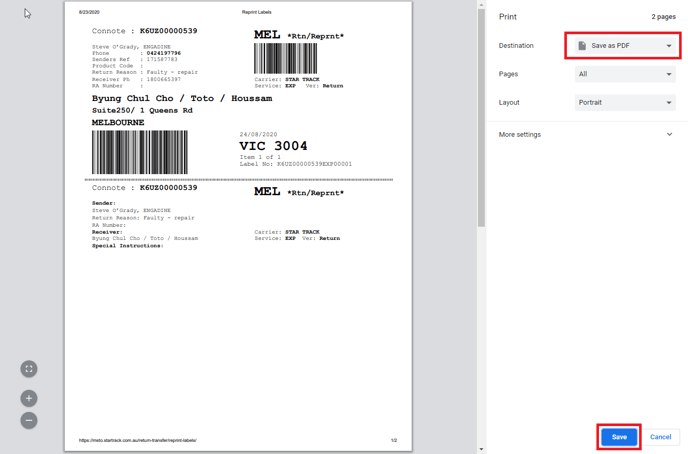
12.Copy Pick-up booking for reference, select DONE.
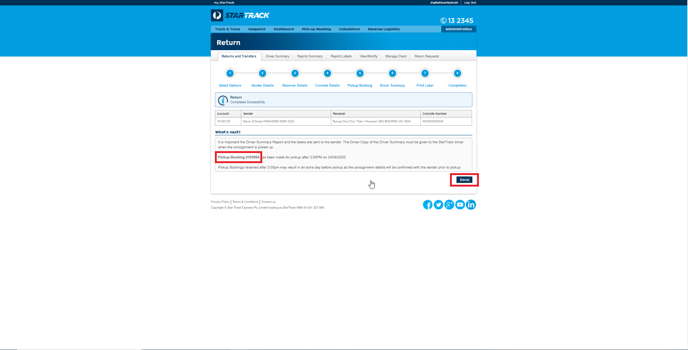
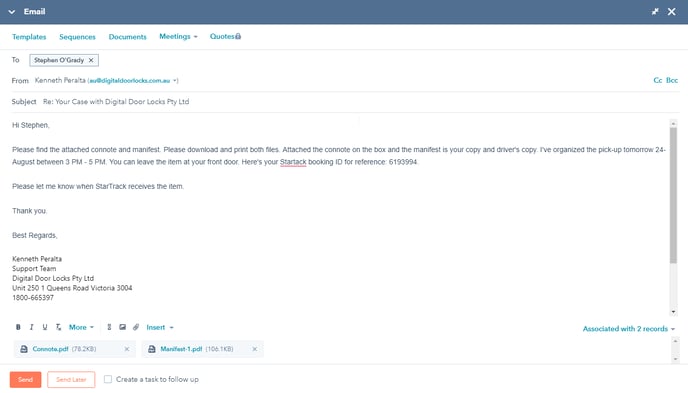
13. Send an email to the customer, attach the Print label (Connote) and the Driver Summary (Manifest). Advise the pick-up date and the pick-up booking ID for reference.