
- Help Centre
- SAMSUNG - INTERNAL - Technical Support
- Work Order Process
-
SAMSUNG - Technical Support
-
SAMSUNG - Online Video
-
SAMSUNG - INTERNAL - Technical Support
- Support Team Call Flow
- Door Lock SHP-A30
- Door Lock - SHP-DP609
- Door Lock - SHP-DR708
- Door Lock - SHP-DP728
- Door Lock - SHP-DP727
- Door Lock - SHS-P718
- Door Lock - SHS-P717
- Door Lock - SHP-DH538
- Door Lock - SHP-DH537
- Door Lock - SHS-3321
- Door Lock - SHP-DS510
- Door Lock - SHP-DS705 (SHS-D607)
- Door Lock - SHS-H505
- Door Lock - SHS-H705
- Door Lock SHS-7020
- Door Lock - KL-100B & KL-100S (Keyless key)
- General Miscellaneous
- Accessory/ Lock Parts
- CCTV
- HubSpot
- Work Order Process
-
INTERNAL - Logistics
-
INTERNAL - Documents
-
INTERNAL - Product and Merchandising Manager - SOP
→ How to create a WO (Old Process using HS)
Sending locksmith to investigate and fix the issue.
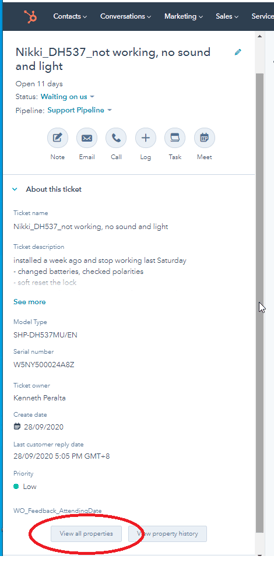
1. Select the ticket property.
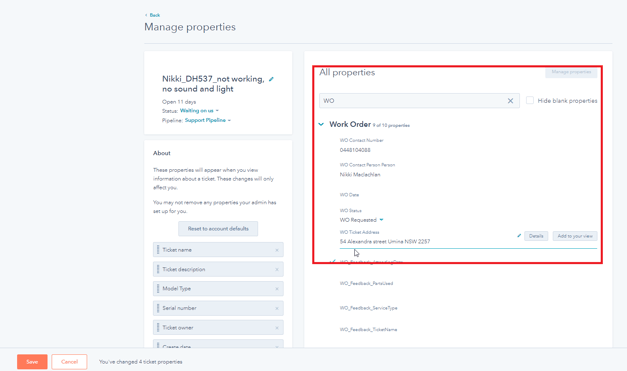
2. Type WO and fill in customers details then Save. WO Status should be "WO Requested".
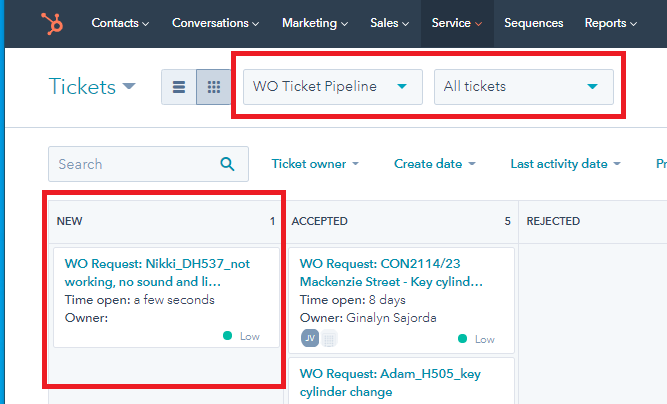
3. Hubspot will create a new ticket in WO pipeline. Assign the new WO ticket to yourself.
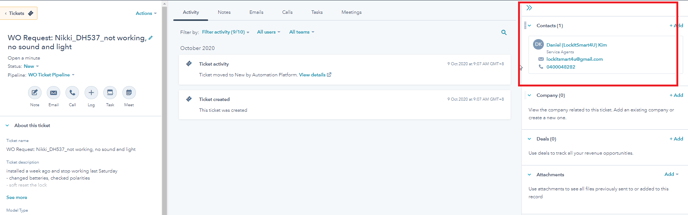
4. Add the locksmith information.
5. Add your notes in the ticket description.
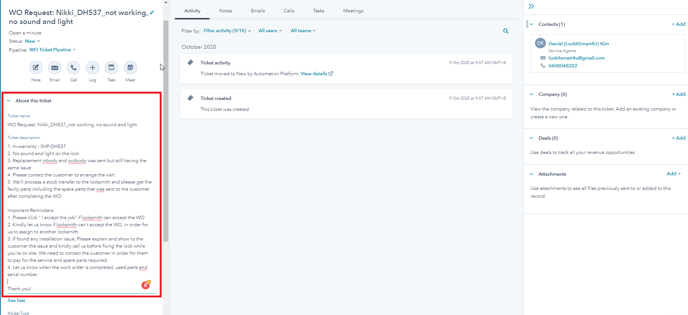
6. Go to the ticket property, type WO, then change the WO status from "WO Requested to WO Assigned". It will automatically send a WO email to the locksmith assigned.