
-
SAMSUNG - Technical Support
-
SAMSUNG - Online Video
-
SAMSUNG - INTERNAL - Technical Support
- Support Team Call Flow
- Door Lock SHP-A30
- Door Lock - SHP-DP609
- Door Lock - SHP-DR708
- Door Lock - SHP-DP728
- Door Lock - SHP-DP727
- Door Lock - SHS-P718
- Door Lock - SHS-P717
- Door Lock - SHP-DH538
- Door Lock - SHP-DH537
- Door Lock - SHS-3321
- Door Lock - SHP-DS510
- Door Lock - SHP-DS705 (SHS-D607)
- Door Lock - SHS-H505
- Door Lock - SHS-H705
- Door Lock SHS-7020
- Door Lock - KL-100B & KL-100S (Keyless key)
- General Miscellaneous
- Accessory/ Lock Parts
- CCTV
- HubSpot
- Work Order Process
-
INTERNAL - Logistics
-
INTERNAL - Documents
-
INTERNAL - Product and Merchandising Manager - SOP
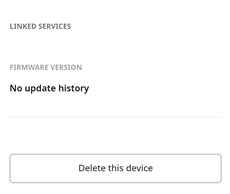
SHP-A30 How to DELETE a Lock from the App.
- Click on "Device"from the main menu of the app
- Choose the lock you want to delete from the list of devices added to the app
- Click the "Settings" under the lock chosen
- Scroll down till the end of the list of settings and you will find "Delete this Device"
Notes :
- If there are other shared users
- then you can be invited by other users as it will be removed from your app only.
- The Temporary code will be remained.
2. If you are the last user of this door lock
-
- The temporary codes created from the app will be deleted.
- The access log data will be deleted.
- But the user PIN code created from the lock will be remained.
- The mast PIN code and Fingerprints will be remained.